
Your shop is good and your work is good. But when someone nearby searches "bakery near me" or "dentist in Model Town", your name doesn't come up. Instead they see the businesses with a pin on the map, a phone number and a row of reviews.
That gap usually comes down to one free tool: Google Business Profile. This guide walks you through how to set it up, how to get it verified, and how to make it good enough that customers actually call.
What is Google Business Profile, and why does it matter?
Google Business Profile is a free listing that shows your business on Google Search and Google Maps, with your name, address, phone number, opening hours, photos and reviews. You need a Google account and a few minutes to create it. Once it is verified, customers can call you, get directions or open your website in one tap. Google explains the service on its own Business Profile page.
For a local business, this is probably the cheapest and most important online step you can take. Someone searching for something "near me" is usually ready to buy right now.
What should you have ready before you start?
Gather these in one place first and the job takes half the time:
- Your business name exactly as it appears on your board and paperwork.
- Your full address — or, if you go to customers, the areas you serve.
- A phone number that someone actually answers during business hours.
- Your opening hours and weekly day off.
- A few real photos of the shop, your work and your team.
- A Gmail account in the business's own name, not an employee's or your designer's.
How do you set up Google Business Profile? Step by step
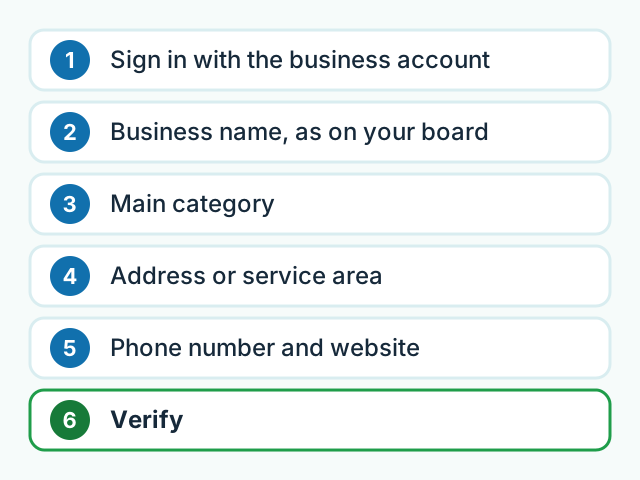
1. Sign in with the business account
Go to business.google.com and sign in with the Gmail account that belongs to the business. If a profile for your business already exists, Google will offer to let you claim it. Claim that one instead of creating a new one.
2. Enter your business name
Use the name on your shop board. Don't add extras like "best", "cheap" or the city name. Google's guidelines don't allow it, and doing it can get the profile suspended.
3. Choose the right category
The category tells Google which searches to show you in — "Bakery", "Dentist", "Furniture store" and so on. Pick one main category that is closest to what you do. You can add extra categories later.
4. Add your address or service area
If customers come to your shop or office, enter the full address and put the pin exactly on your door. If you go to customers — a plumber, an electrician, a home tutor — hide your home address and list only the areas you serve.
5. Add your phone number and website
Use a number that is always picked up during business hours. If you have a website, add the link. One rule matters here: your name, address and number should be identical everywhere — website, Facebook page and Business Profile.
6. Complete verification
An unverified profile doesn't show properly. Google decides how you verify: sometimes a code by phone or email, sometimes a short video of your shop, signboard and workplace, sometimes a code by post. Follow whatever method you are shown. The current process is on the Google Business Profile Help Center.
How do you improve your profile after verification?
A profile that merely exists isn't enough. Customers trust one that is complete and up to date:
- Hours: keep normal hours right, and update special hours for Eid, Ramzan and other holidays in time.
- Photos: the outside of the shop so people recognise it, the inside, your products and your team. Never use pictures taken from the internet.
- Services and products: list your main services with a short line about each.
- Description: two or three plain sentences on what you do and which areas you cover.
- Posts: share a short update now and then — a new offer, a new product, a special occasion.
How do you get more Google reviews?
New customers read reviews before they decide, so give them real attention:
- When a job is done, send happy customers your review link on WhatsApp and ask politely. You'll find the link inside your profile.
- Reply to every review. Thank people for good ones; answer complaints calmly with what you did to fix things. Other customers read your replies too.
- Never buy reviews, and never ask friends and family to write fake ones. It is against Google's policies and can damage the whole profile.
Which mistakes should you avoid?
- Letting someone else own the profile. Often a designer or a relative sets it up on their own Gmail. When you lose touch with them, you lose access to your own profile. Keep it on your account and add helpers as "managers".
- A wrong map pin. A customer who ends up in the wrong street rarely comes back.
- Different numbers everywhere. One number on Facebook, another on the board, a third on Google — that confuses customers and Google alike.
- Two profiles for one business. Claim the existing one; don't create a duplicate.
- Setting it up and forgetting it. Old hours and dead numbers kill trust fast.
What does this look like for a real shop?
Here's a hypothetical example, but a very common one. Say you run a bakery in Gulberg, Lahore. You create the profile on the business Gmail, choose "Bakery" as the category, drop the pin on the shop door, upload real photos of your cakes and mithai, and fill in your hours. After every order, you send the customer your review link on WhatsApp.
Now when someone nearby searches "birthday cake near me", they see your shop, your photos, your reviews and a call button together. If your profile links to a website, they can browse the full menu and send an order on WhatsApp from there.
How do your website and Business Profile work together?
Your Business Profile tells customers where you are and how to reach you. Your website tells them what you do, why they should trust you, and how to order or book. Each makes the other stronger, and Google takes a business more seriously when its details are complete and consistent everywhere.
Every business website we build includes basic on-page SEO and guidance on setting up your Google Business Profile. If you'd like us to handle both, see our fixed-price packages or get in touch.
Your checklist
- Google Business Profile is free, and every local business should have one.
- Create it on the business's own Gmail account, not someone else's.
- Use your real name, an accurate pin, the same phone number everywhere and real photos.
- Finish verification and keep your hours up to date.
- Ask real customers for reviews and reply to every one.
Frequently asked questions
Is Google Business Profile free?
Yes. Creating and running a Google Business Profile costs nothing. You only pay if you hire someone to set it up or look after it for you.
Can I create a profile without a website?
Yes, a profile works without a website. But a website link lets customers see your services, photos and prices in detail, which builds more trust.
How long does verification take?
Google decides. Some businesses are verified quickly by phone or email, some are asked for a short video, and some get a code by post. Follow whichever method Google shows you.
Will fake reviews push my profile higher?
No. Bought or fake reviews break Google's policies. They can be removed and the whole profile can be suspended, so only ask real customers.